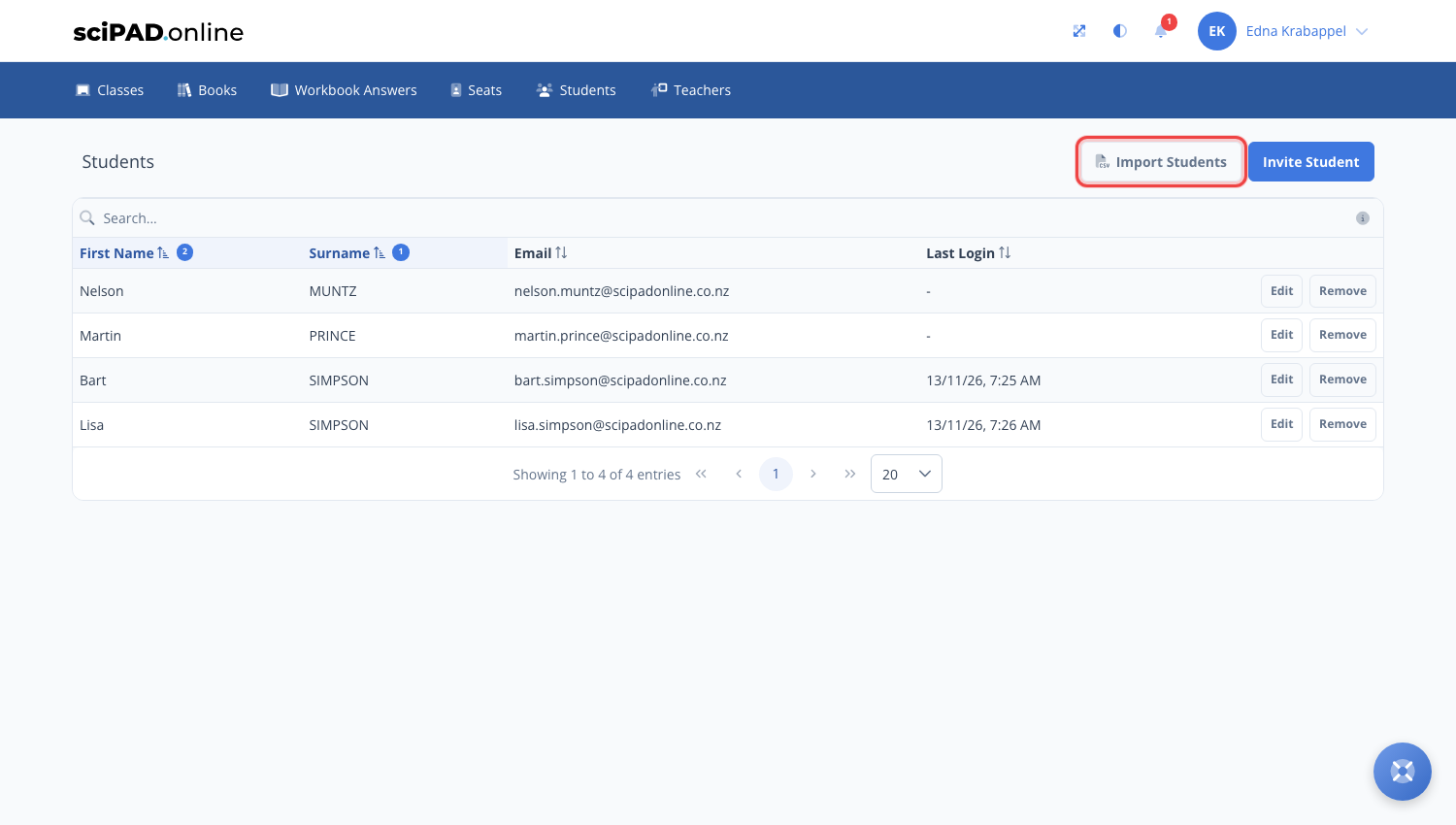
If you have a whole cohort to add, a school admin can import them in one go from a spreadsheet instead of inviting each student separately. Only school admins see the Import Students button.
Click here to invite a single student instead.
Prepare your spreadsheet
You need one row per student with three columns: first name, last name and email. Most student management systems can export this. Save it as a CSV file (in Excel or Google Sheets, choose Save as or Download and pick CSV). The column headings don't need to match exactly - you'll match them up in the next step - and any extra columns are ignored.
Not sure of the layout? The import window has a Download example CSV link.
Import your students
- Navigate to the Students tab in the top menu.
- Click Import Students, beside Invite Student.
- Click Choose CSV file and pick your file.
Match the columns
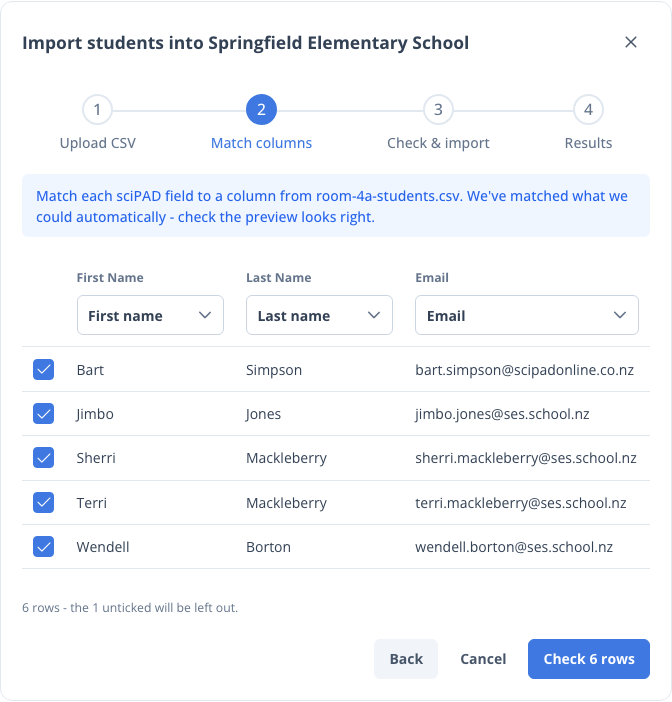
sciPAD matches your columns automatically where it can. Check each column heading shows the right field, or change it using the dropdown above the column. Problems such as a missing name or an email that isn't valid are flagged in the preview, and those rows are left out. You can also untick any row you don't want to import.
Check before you import
Click Check rows and sciPAD compares every student against existing accounts. Each row tells you what will happen:
- Will create - a new account. The student is emailed their login details.
- Existing - will add & send reset link - the student already has a sciPAD account (for example from another school). They are added to your school, keep all their existing work, and are emailed a link to reset their password in case they have forgotten it.
- Already at this school - nothing to do, so the row is skipped.
- Skipped - the row has a problem, such as an invalid email. Fix it in your spreadsheet and import it again. Emails that belong to a teacher account are skipped too - email support if one of them should be added.

Nothing is imported until you click Import. Untick any row you want to leave out.
Results
The last step lists every student and what happened. If any rows failed, click Download failed rows to get just those rows as a CSV, fix them, and import that file.

Imported students appear in your student list straight away. Next, share your class code so they can join their class.