Once students have submitted, you mark their work one attempt at a time, then release the results when you are ready. Objective questions are marked for you; the written ones are yours to judge.
Open a student's attempt
From the class's Assessments tab, click Monitor on the assessment, then Mark on a submitted attempt.
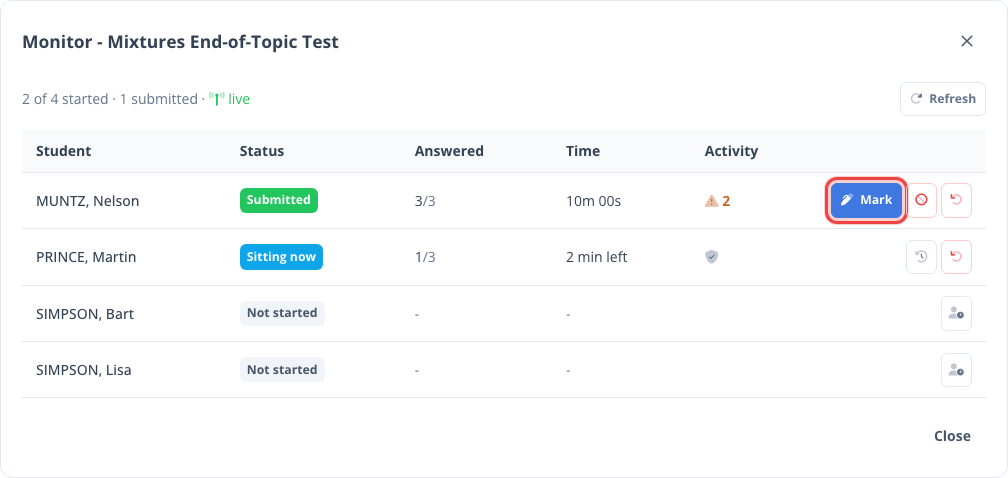
The marking page
The student's paper is on the left, exactly as they answered it, with the correct answers shown so you can see what they got right. The mark card on the right follows you as you scroll - it always shows the question you are looking at, so there is no hunting for the matching box.
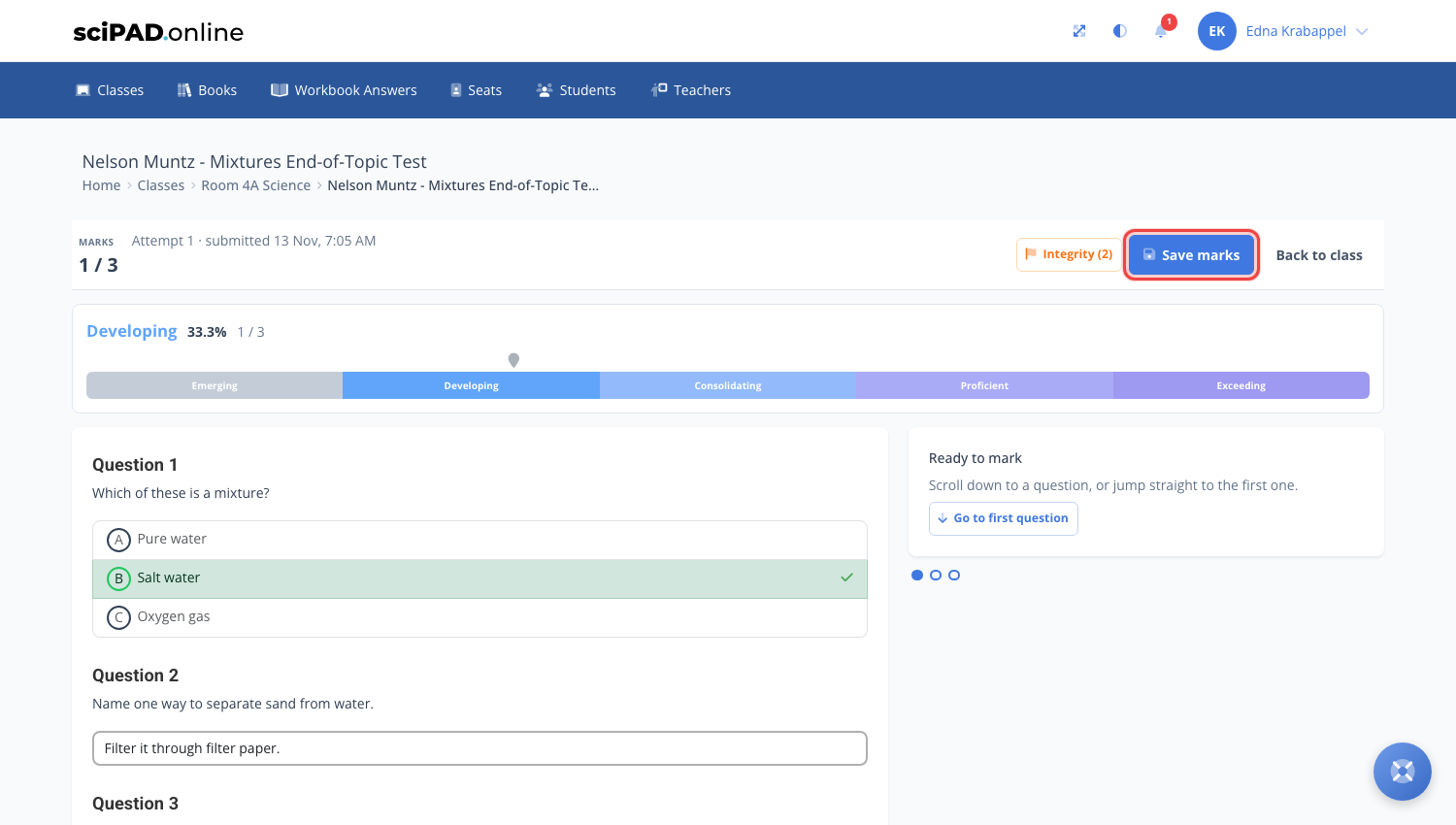
- Objective questions are auto-marked. Multichoice and similar questions show an auto mark already filled in. It is the server's judgement - you can override it, and your mark always wins.
- Written questions wait for you. Short and long answers show needs your mark; type a mark and, if you like, a comment for the student.
- The running total stays in the bar at the top, and the row of dots lets you jump to any question - a filled dot means it has a mark.
Click Save marks whenever you like - you can come back and adjust later.
Reviewing integrity signals
Open Integrity in the top bar to see anything recorded during the sitting - tab switches, pastes from outside the test, fullscreen exits - with Show timeline for a minute-by-minute view.
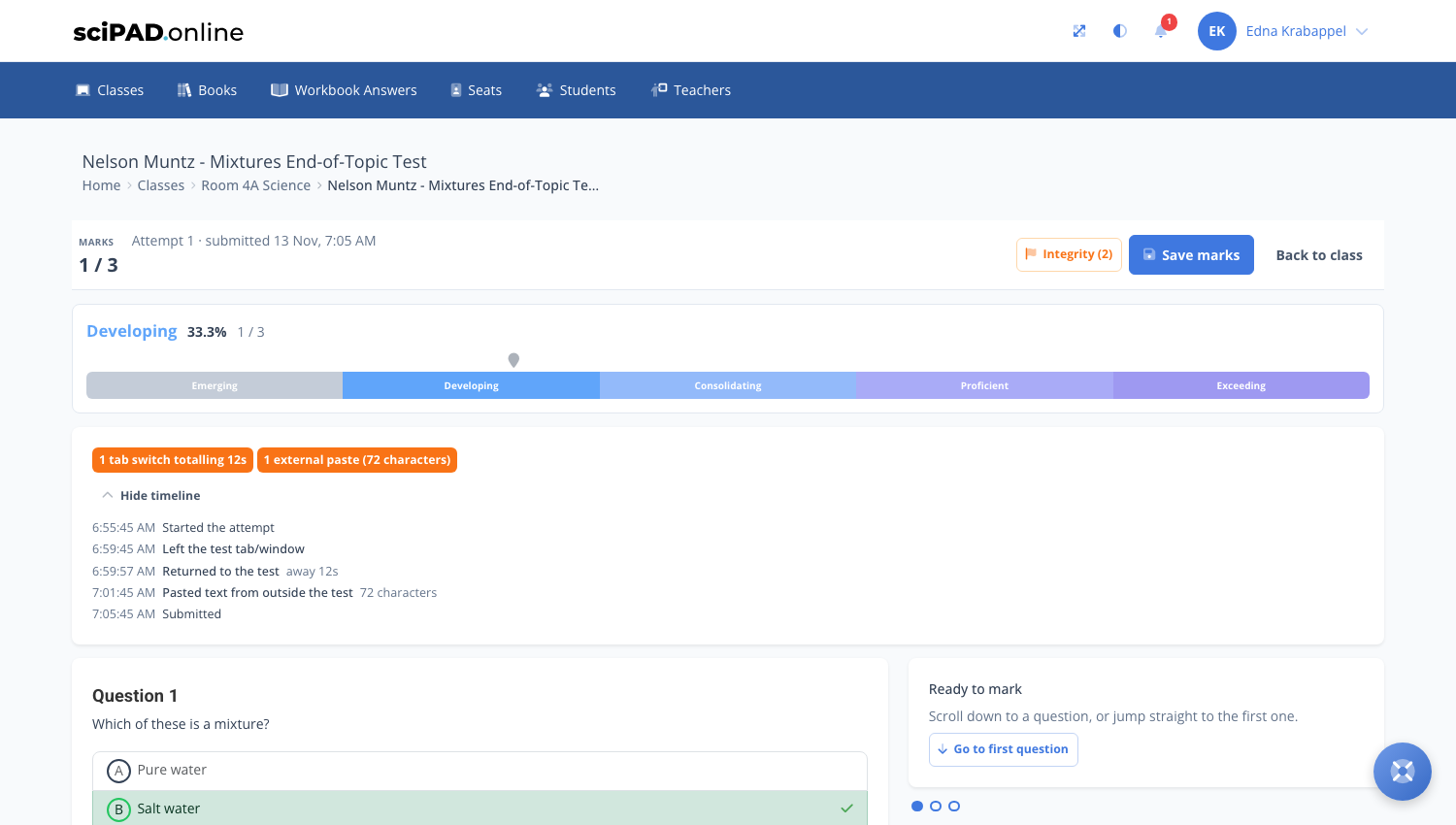
These are observations to discuss with the student, not proof of anything on their own. Weigh them with everything else you know before drawing any conclusion - they never mark or penalise a student automatically.
Publishing results
Marking stays private to you until you publish it. When you are ready, go back to the Assessments tab, open the menu (⋯) on the assessment's card and choose Publish results.

Every student who sat it can then see their score, their marks question by question, your comments, and their own paper with the answers revealed - see Viewing your assessment results. You can still adjust marks after publishing; students simply see the updated result, and they are only notified the first time you publish.