An assessment is a timed test your teacher sets for your class. You get a single attempt, a countdown while you work, and your answers save on their own. This guide walks you through starting one and handing it in.
Finding your assessments
Open Assessments from the menu. Anything you can sit shows under Upcoming, with the class it belongs to and how long you will have. When an assessment is open, a Start button appears next to it.
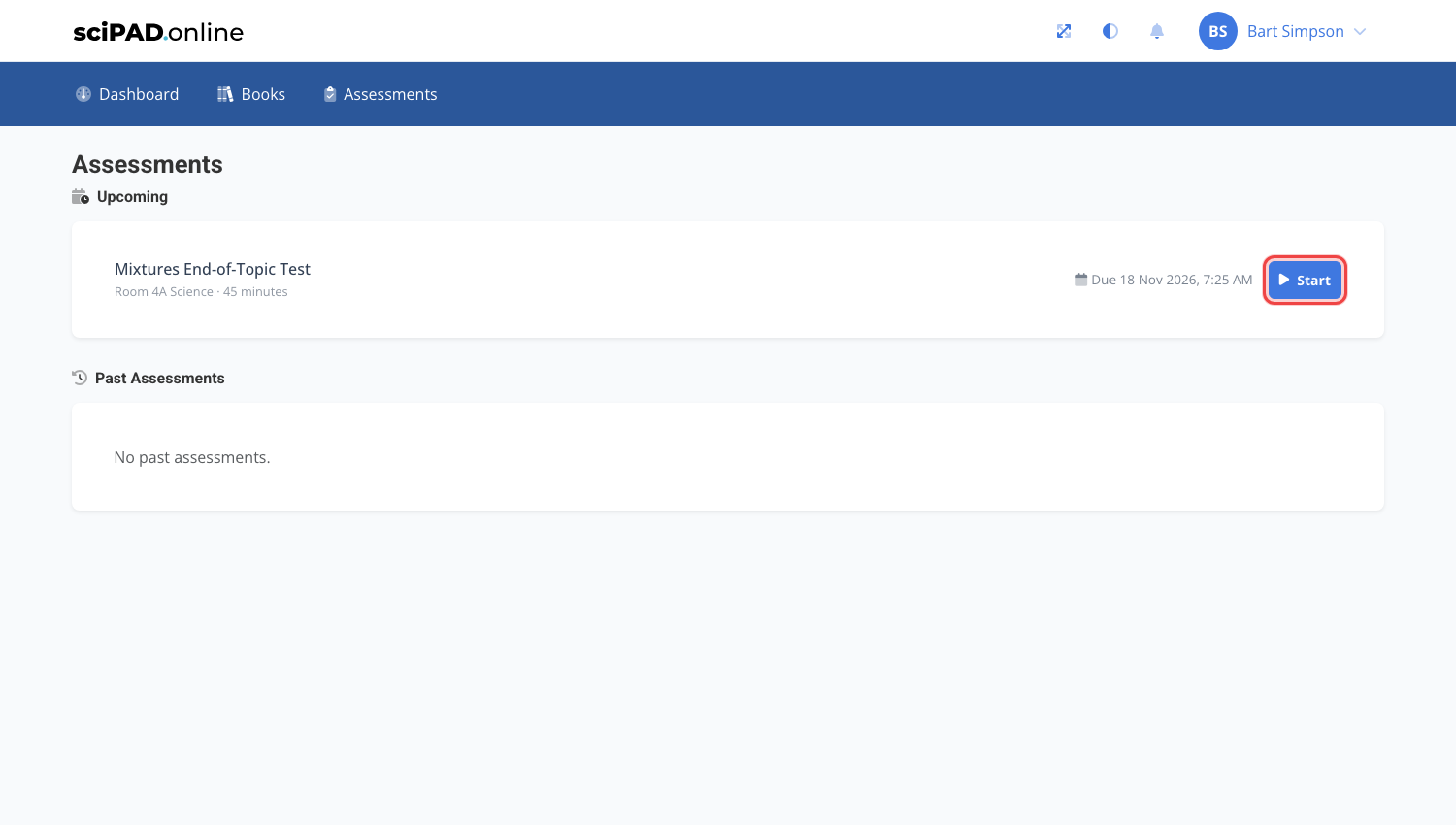
If you see Opens and a date instead of a button, the assessment has not opened yet - check back at that time. If you have already begun one, the button says Resume and takes you straight back in.
Before you begin
Clicking Start shows you the ground rules before the clock starts:
- How long you have - the timer only starts when you press Begin Test, not when the assessment opens.
- Single attempt - once you begin you cannot retake it, so make sure you are ready and have a stable internet connection.
- Your teacher is watching - assessments are monitored. Your progress is visible to your teacher as you work, and activity such as leaving the test tab or pasting in text is recorded.
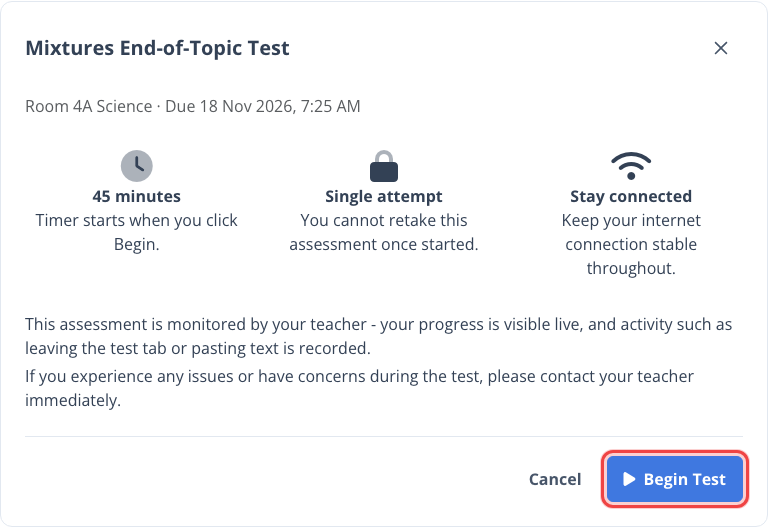
When you are ready, click Begin Test. If you are not ready yet, click Cancel - nothing is started and you can come back later while it is still open.
While you are working
Your questions appear with a countdown timer in the top corner. It turns amber, then red, as your time runs low.
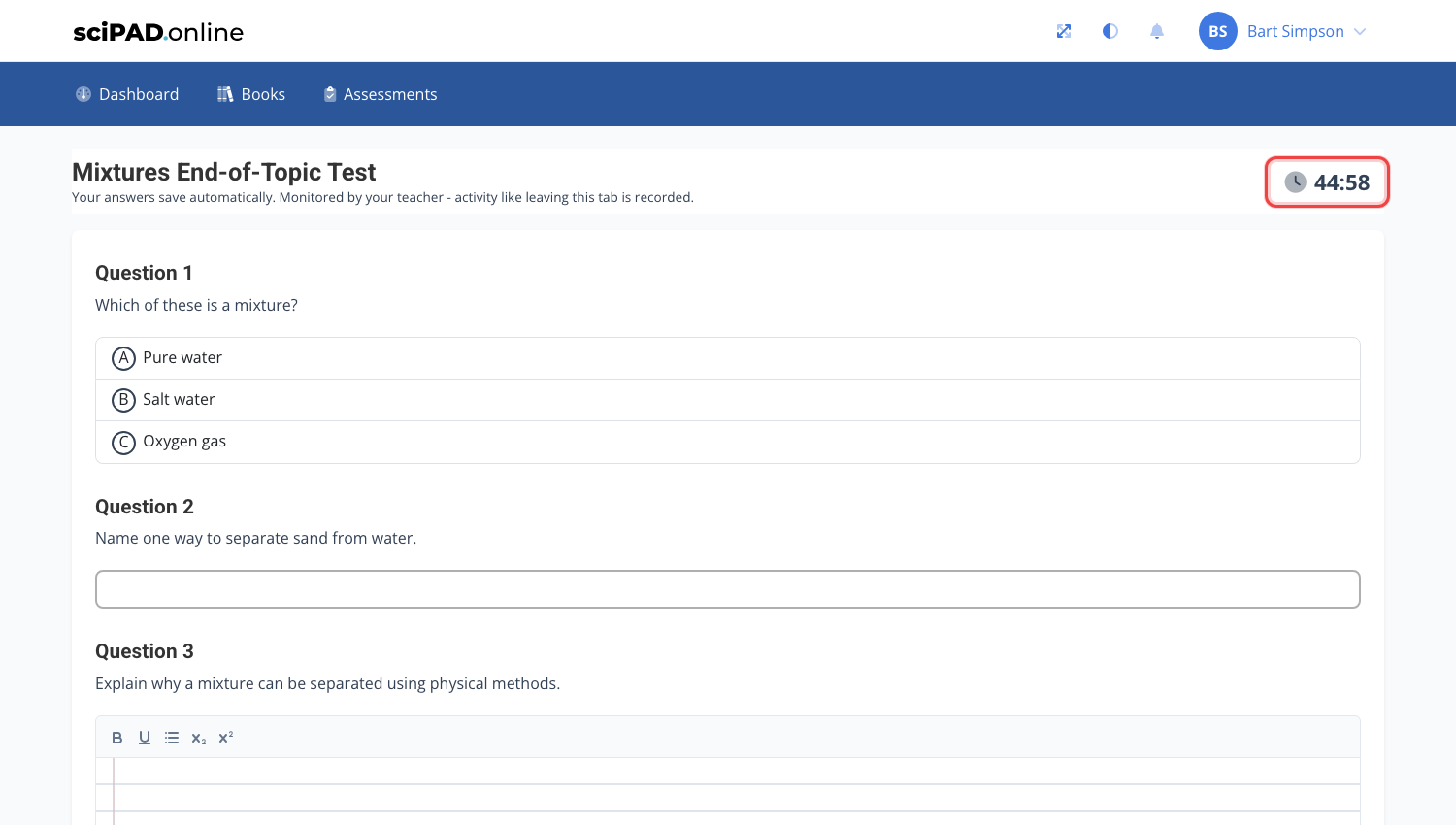
A few things to know as you work:
- Your answers save automatically as you type - there is no save button.
- Do not refresh or close the tab on purpose, but if something goes wrong and you come back, your saved answers will still be there and the timer keeps running.
- You will not see whether an answer is right or wrong. Unlike a normal lesson, an assessment never marks your answers as you go.
- If your teacher has turned on fullscreen, you will be asked to enter fullscreen before the questions appear. Leaving fullscreen is recorded, so stay in it until you have finished.
Handing it in
When you have answered everything, scroll to the bottom and click Submit assessment. You will be asked to confirm, because you cannot make changes afterwards.
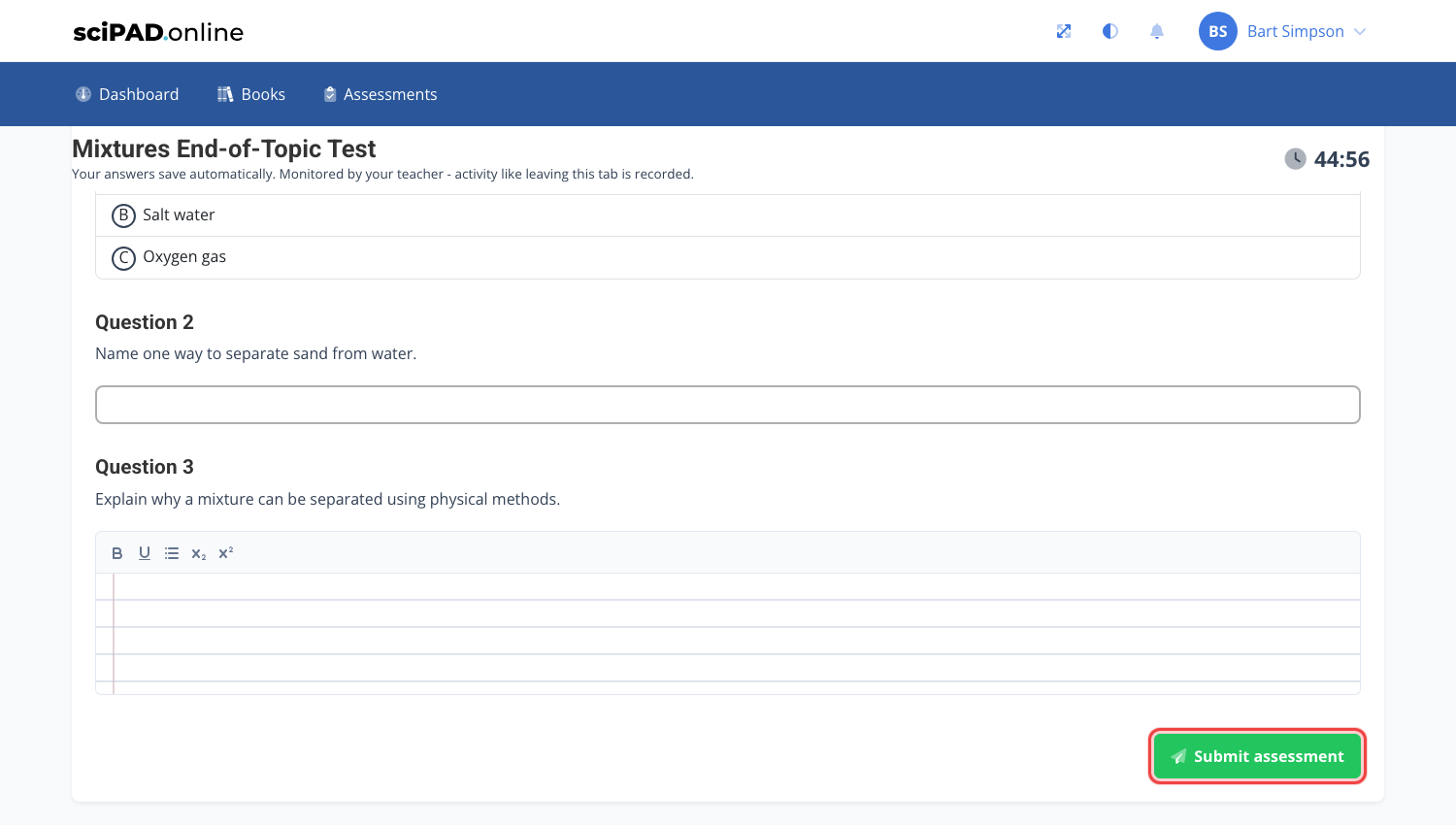
If the timer runs out before you submit, that is fine - your work is handed in automatically with whatever you had saved. Once you have submitted, your results appear under Assessments as soon as your teacher releases them. See Viewing your assessment results.
If anything goes wrong during a test - your device freezes, you lose internet, or the page will not load - tell your teacher straight away. They can sort it out from their end.