An assessment is a timed, single-attempt test you set for a class from the assessments in your book. Students only see it once you publish, and their answers are never sent to their device - the content is served with the answers stripped out and marked on our servers. This guide covers creating one and making it live.
Assessment content itself is written by the sciPAD team, not in the portal. You choose which assessment to run, when, and for whom. If your book has no assessments and you were expecting one, email support.
Open the Assessments tab
Open your class and choose the Assessments tab. Each assessment for the class has its own card showing its status (Draft, Published or Closed), when it opens and is due, and how many students have submitted. The tiles along the top count your assessments and filter the list - click Published or Drafts to see just those - and you can search by name. Prefer a compact list? Click Show all assessments.
To make a new one, click New assessment.

Or start from the assessment bank
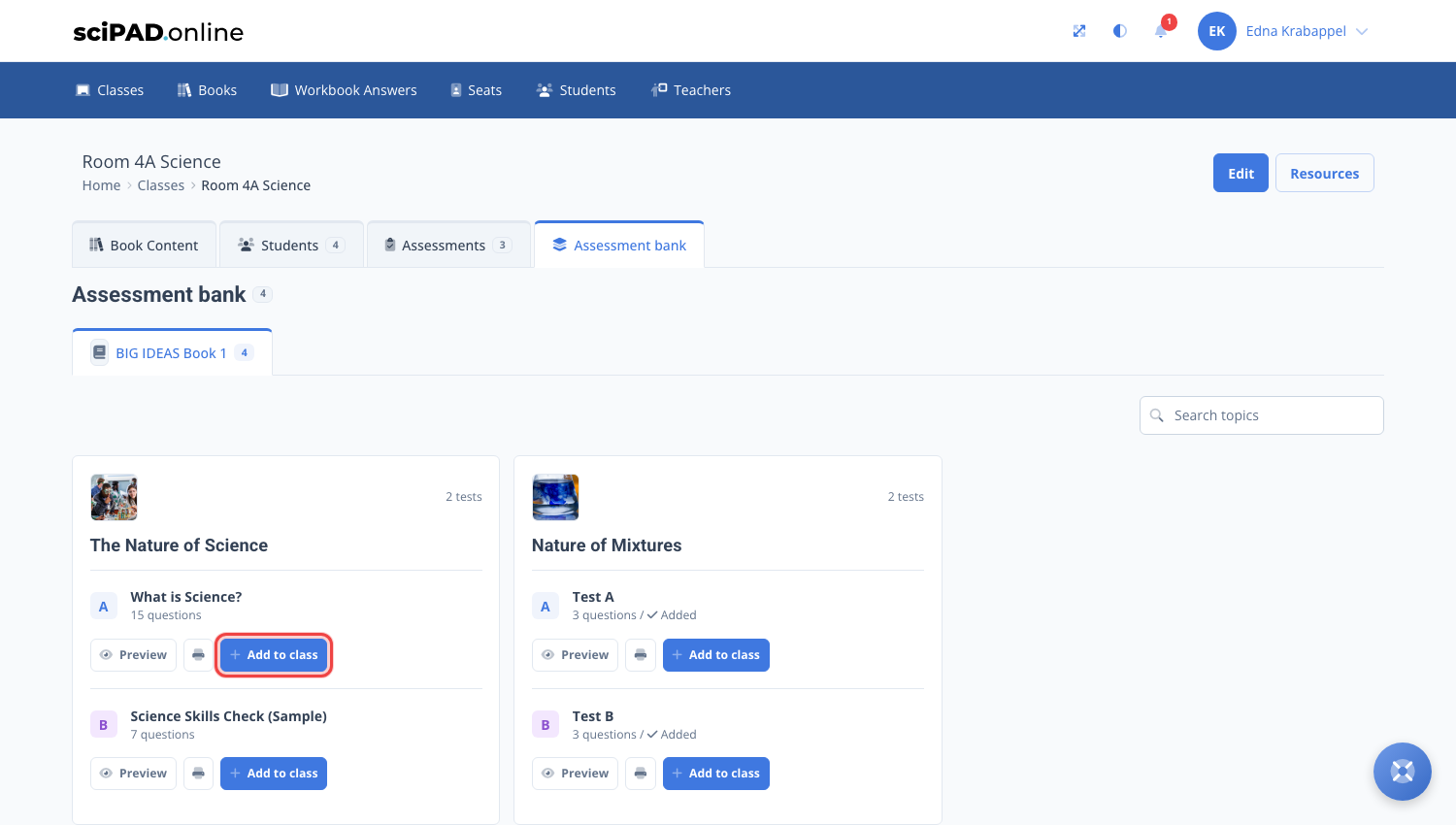
The Assessment bank tab lists every assessment in your class's books, grouped by topic. If your class has more than one book, choose the book from the tabs along the top, just like on Book Content. Click Preview to look through one with the answers shown, or Add to class to set it for your class - the test is already chosen, so you just set the name, dates and options below. Tests you've already set for this class are marked Added.
Create the assessment
Fill in the details:
- Topic and Assessment - choose the topic, then the assessment from your class's book. Only topics with an assessment are listed.
- Name - starts as the assessment's name. Change it to something clearer like End of topic test if you like.
- Opens and Due - the window students may begin in. They can start any time between these two.
- Duration - how many minutes each student gets from the moment they press Begin. The timer is enforced on the server, so it keeps running even if a student closes the tab.
- Require fullscreen - optional. Students sit the test in fullscreen and every exit is recorded for you to review.
- Who sits this assessment - everyone in the class, or only students you pick.

Preview it first
Not sure which assessment to pick? Once you've chosen one, click Preview with answers under it to see the whole paper with the correct answers filled in. Written questions show their model answer.
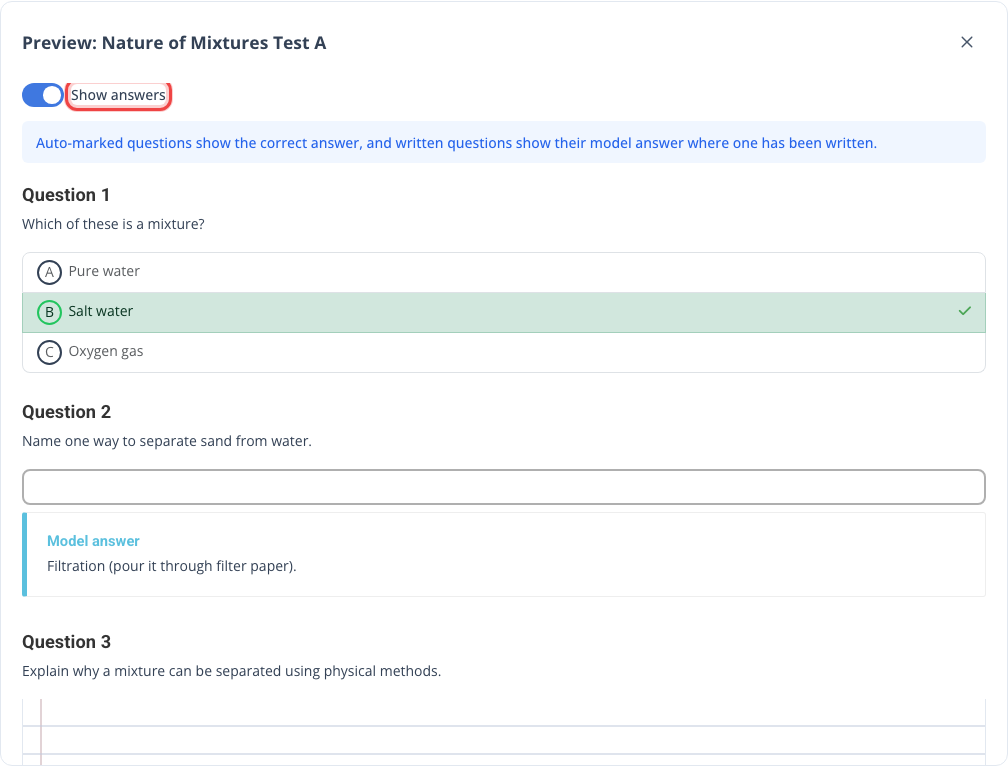
Turn Show answers off to see the paper the way students will, and try it out yourself - nothing you enter is saved. Click Close to return to your assessment.
Save the draft
Click Create draft to save it. Nothing is visible to students yet - a draft is yours to review and edit first.
Publish it
When you are happy with the details, click Publish on the draft's card and confirm.

Once published, eligible students see the assessment under their own Assessments page and can start it inside the window you set. From the card's menu (⋯) you can still Edit assessment to change the window or duration, Duplicate it to set the same test again, and Close it early if you need to. From here you will want to keep an eye on students as they sit it - see Monitoring an assessment.